You may have already noticed you’re not able to navigate the terminal using your mouse or cursor. We can navigate the terminal using the keyboard. The up and down arrow keys let you move back (up) and forward (down) through previously typed commands. The left and right arrow keys let you move within characters or symbols for a specific command.
Press the up arrow once to show the previously-typed echo command. Then, use the left and right arrow keys to navigate to the characters within the quotation marks and replace them with another word or phrase of your choosing. Press Return or Enter to run the modified command.
A couple other useful navigation tools:
Press
Control+Ato move to the start of a linePress
Control+Eto move to the end of a lineType
clearinto the terminal and pressReturn/Enterto clear the screenWhen you’re ready to close the terminal window, type
exitand pressReturn/Enter
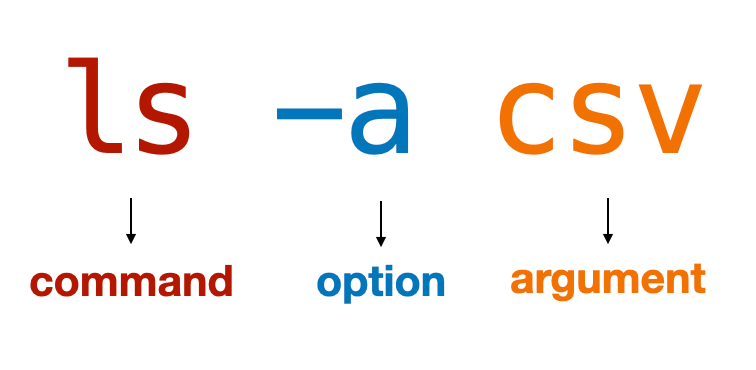
A couple notes on terminal syntax:
commandstell the computer to perform an actionoptionsmodify the command and use a hyphen (-) symbolSometimes
optionsare calledflagsorswitches
argumentsspecify what the command operation will be performed on (i.e. a specific file or directory)
Not all commands require arguments or options, but some commands can have one or more of each. You can also chain multiple commands together using the vertical bar | symbol. This is often called a pipe.
Navigating Your File System
Have you ever tried to find a specific file on your computer? This is a common user task, but we can start to better understand how the computer stores and organizes information.
pwd
pwdBefore we start moving around, let’s use the pwd (print working directory) command to show your current location. Type pwd in the terminal and press Enter or Return. Your output might look something like this:
/Users/kwaldenThis directory information is called a path (sometimes called a file path when dealing with specific files).
The backslash
/at the start of the path stands for your computer’srootSubsequent slashes indicate subfolders or subdirectories
So in the /Users/kwalden example, the terminal is running in the kwalden subfolder which is located in the Users folder. The Users folder is located at my computer’s root.
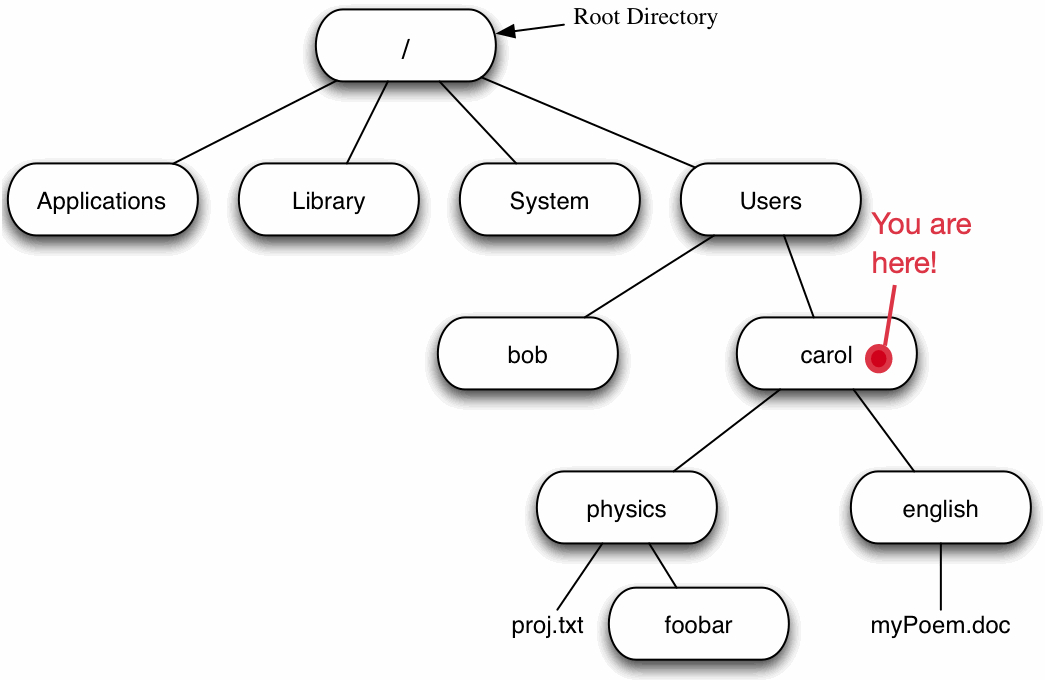
The inverted tree diagram shown above shows one example of a computer’s file system.
The
root(top of the tree) is your computer’s hard drive.The next set of branches are a set of folders (
directories) that are used by everyone who uses the computerThe
usersfolder includes different specific user profilesThe folders located under a specific username are associated with that user profile
These folders commonly include
Applications,Desktop,Documents,Downloads, etc.
If you have ever used File Explorer (Windows) or Finder (Mac), you have navigated this tree structure using the graphical user interface (GUI). Now let’s think about how we navigate this structure using the command line interface (CLI).
ls
Typically by default, your terminal will open in the folder or directory for your user profile.
But you can check this using the
pwd(print working directory) command
lsLet’s see what other files and subdirectories are located in your current path by using the list command (ls). Type ls in the terminal and press Enter/Return.
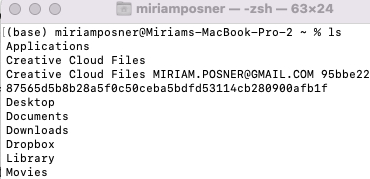
Items that are followed by a file extension (e.g. .docx, .txt, .xlsx, etc) are generally individual files. Items that do not have a file extension are typically subfolders or subdirectories.
cd
We can move down the tree using the change directory command (cd). Let’s move from your user profile folder to the Desktop.
cd Desktop Type cd Desktop and press Enter/Return.
You can also type
cd Deskand press theTabkey (beforeEnter/Return) to autocomplete the command
When using the cd (change directory) command, we are navigating the computer’s file system using relative paths. This means the location information we are specifying in the terminal is relative to our current position or location in the file system. The previous cd Desktop command is an example of a relative path.
Absolute paths always start at the root and use backslash / symbols to indicate subfolders.
/Users/kwalden/Desktopwould be the absolute path version of the previous commandNOTE: Be sure to replace
kwaldenwith your user name
We can use the ls command again to see the materials located on our Desktop. We can also move back up the file system tree using the cd command.
cd .. Instead of using cd followed by a relative or absolute path, we can use cd .. (cd followed by a space and two periods) to move up one level in the tree. Type cd .. in the terminal and press Enter/Return. You can test using pwd if needed, but you should be back in the specific user profile folder.
Key Concepts
File Manager (or File Browser)
“A file manager or file browser is a computer program that provides a user interface to manage files and folders. The most common operations performed on files or groups of files include creating, opening (e.g. viewing, playing, editing or printing), renaming, copying, moving, deleting and searching for files, as well as modifying file attributes, properties and file permissions. Folders and files may be displayed in a hierarchical tree based on their directory structure” (Wikipedia)
Examples: Finder (Mac), File Explorer (Windows)
File Extension (or Filename Extension)
“A filename extension, file name extension or file extension is a suffix to the name of a computer file (e.g., .txt, .docx, .md). The extension indicates a characteristic of the file contents or its intended use. A filename extension is typically delimited from the rest of the filename with a full stop (period)” (Wikipedia)
Directory
“In computing, a directory is a file system cataloging structure which contains references to other computer files, and possibly other directories. On many computers, directories are known as folders” (Wikipedia)
Path
“A path is a string of characters used to uniquely identify a location in a directory structure. It is composed by following the directory tree hierarchy in which components, separated by a delimiting character, represent each directory. The delimiting character is most commonly the slash /, the backslash character \, or colon :” (Wikipedia)
Absolute Path
“An absolute or full path points to the same location in a file system, regardless of the current working directory. To do that, it must include the root directory” (Wikipedia)
Relative Path
“A relative path starts from some given working directory, avoiding the need to provide the full absolute path” (Wikipedia)