
Linking Pages#
Now, let’s add a link to the second page on our index.html page. We add links with the <a> tag and the href attribute. The a tag defines a hyperlink, and the href attribute shows the link destination.<a href> tag. This tag allows us to link pages in the same website and link out to pages that exist on external websites.
The tag syntax is as follows: <a href="URL to page">Text that will appear as the link</a>.
Example#
Below your paragraph tag on the index.html page add the line <a href=”page2.html”>Link to page 2</a>.
Learn more about the
<a href>tag via W3Schools: http://www.w3schools.com/TAGS/att_a_href.asp
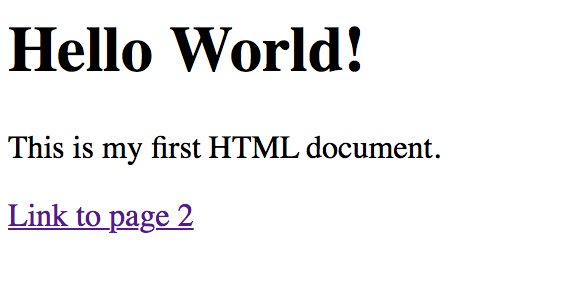
Open index.html in a web browser to see the updated file with a link.
Explanation#
When you click on “Link to page 2” your page2.html file should open. In this case, our URL to the page in our <a href> tags is just the name of new page we created. We do not need a full URL (http://www.somewhere.com) because we are calling a file that is stored in the same directory.
NOTE: If your link is not working, try re-typing the quotation marks around the destination link.
If we had saved this file to another folder or directory, we would need to include the full file path, including any directory information. For example if we had put page2.html in a folder titled “pages,” the a href tag would look like <a href="pages/page2.html">.
Application#
If you haven’t already, create a second page and link to it from index.html.